
SSD vs HDD: The Real Difference in How Your Files Are Stored

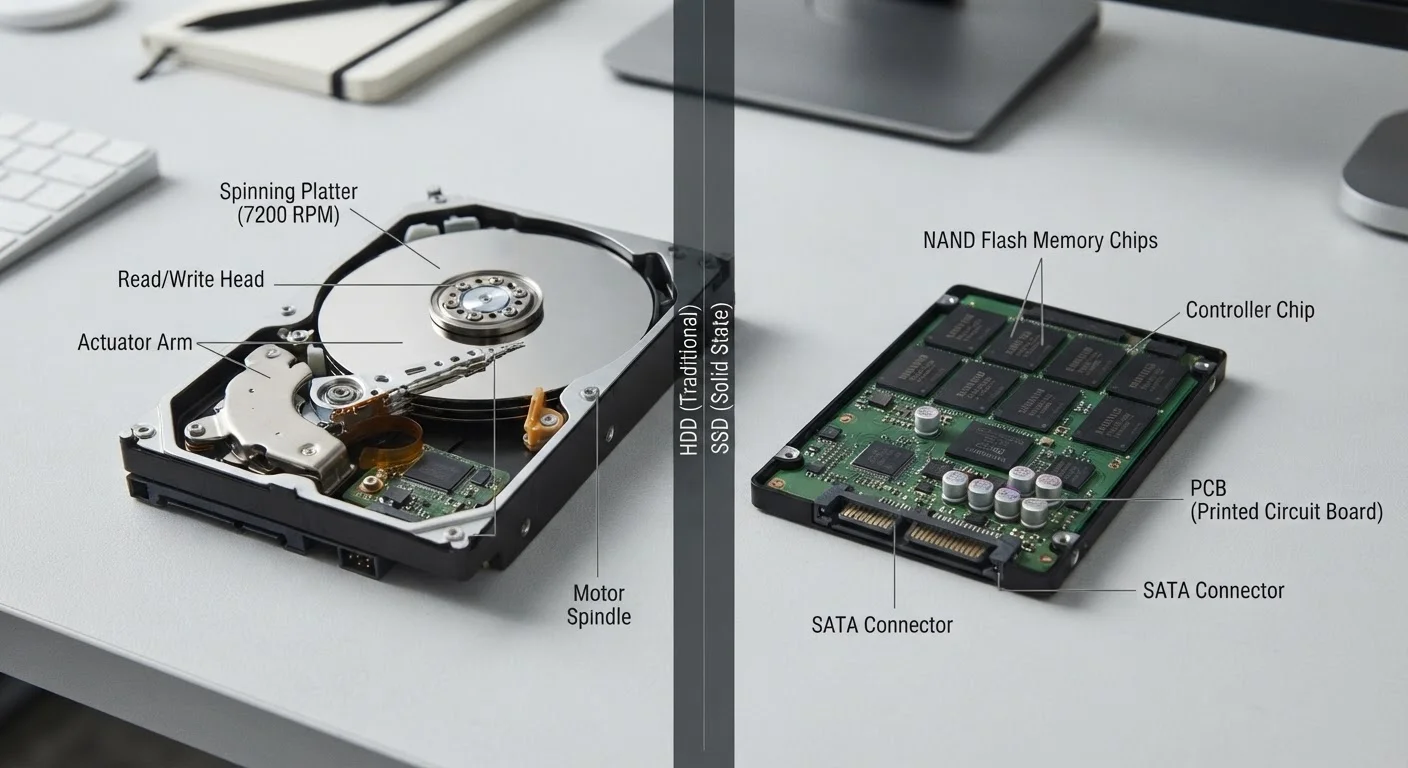
Photo: ArticleHood.com | Precision In Every Word editorial
Key Takeaways
- HDDs use spinning magnetic platters to read and write data; SSDs use flash memory chips with no moving parts.
- SSDs are significantly faster at loading files, apps, and operating systems than HDDs.
- HDDs typically offer more storage space per dollar, making them practical for large file archives.
- SSDs are more resistant to physical shock and drops because they have no mechanical components.
- Both types can fail over time, so backing up your data remains essential regardless of which you use.
How Each Drive Actually Stores Your Data
When you save a document, photo, or app, your drive has to translate that information into a physical format it can hold. The way an HDD and an SSD accomplish this couldn't be more different.
An HDD (Hard Disk Drive) works a lot like a record player. Inside the sealed metal casing are one or more circular platters coated in a magnetic material. A mechanical arm moves across the spinning platters, reading and writing data by magnetizing tiny regions of the surface. These platters spin at thousands of rotations per minute - most consumer drives run at 5,400 or 7,200 RPM. The faster they spin, the quicker data can be accessed.
An SSD (Solid-State Drive) has no moving parts at all. It stores data in NAND flash memory - the same general type of memory used in USB thumb drives, just engineered for higher performance and endurance. Electrical charges are trapped in microscopic cells to represent data. Because there's no arm to move or platter to spin, the drive can access any piece of data almost instantly.
Think of an HDD like a physical library where a librarian has to physically walk to retrieve a book, and an SSD like having every book already open in front of you.
| Criterion | HDD | SSD |
|---|---|---|
| Storage mechanism | Spinning magnetic platters | Flash memory chips |
| Moving parts | Yes (motor, arm, platters) | None |
| Typical read speed | ~100-160 MB/s | 500-7,000 MB/s (varies by type) |
| Shock resistance | Vulnerable when active | Highly resistant |
| Noise | Audible whirring/clicking | Silent |
| Cost per gigabyte | Lower | Higher |
| Typical capacity range | 500 GB to 20 TB+ | 128 GB to 8 TB (consumer) |
| Common use case | Budget PCs, external backup drives | Laptops, primary system drives |
Speed, Durability, and What It Means for You
The mechanical nature of HDDs is the root cause of most of their practical limitations. Because the read/write head must physically seek the right location on the platter, HDDs are slower - especially when loading an operating system, opening large applications, or handling many small files at once. SSDs, by contrast, can read data across their flash cells in parallel, making them substantially faster for nearly every task an everyday user performs.
5-10×
Typical SSD speed advantage over HDD
Sequential read speeds on SATA SSDs are generally 5 to 10 times faster than traditional spinning hard drives under comparable conditions.
~$0.02-0.04
Typical HDD cost per gigabyte (USD)
Hard disk drives continue to offer substantially lower cost per gigabyte than SSDs, making them practical for large-volume storage needs.
Durability is another meaningful difference. Drop a laptop with an active HDD and you risk a head crash - the read/write arm physically striking the platter, which can corrupt or destroy stored data. SSDs have no such vulnerability. This is a significant reason why virtually all modern thin laptops ship with SSDs as standard.
Noise and heat are smaller but real factors too. HDDs generate audible whirring and clicking sounds, along with more heat from friction. SSDs are silent and run cooler.
Where HDDs retain a genuine advantage is cost per gigabyte. A 4TB HDD remains considerably less expensive than an equivalent SSD. If your priority is storing thousands of photos, videos, or backups at low cost, HDDs still make practical sense - particularly as external or secondary drives. For context on how local storage compares to keeping files elsewhere, see what the cloud actually means for your files and photos.
External Drives: The Same Choice Applies
Which One Should Be in Your Device?
For most people buying a new laptop or desktop today, an SSD as the primary drive is the more practical choice. The speed improvement is immediately noticeable in everyday use - a computer boots in seconds rather than minutes, and apps open without lag. The durability advantage matters too, particularly for portable devices.
That said, storage needs vary. A common and cost-effective setup for desktop users is a smaller SSD for the operating system and frequently used programs, paired with a larger, cheaper HDD for storing files that don't need to be opened quickly - video archives, backups, old project folders.
It's worth noting that both drive types can and do fail. SSDs have a finite number of write cycles before cells begin to degrade, while HDDs are susceptible to mechanical wear over time. Neither is immune to failure, which is why maintaining a backup - whether to an external drive or a cloud service - is a habit worth building regardless of what's inside your machine. The underlying principle isn't unlike choosing between engineered vs. solid hardwood flooring: both options work, but understanding the tradeoffs helps you choose wisely for your specific situation.
Understanding what's inside your computer doesn't require a technical background - it just requires knowing what each component is actually doing for you day to day.
The content on this site is for informational purposes only and is not a substitute for professional advice. Always consult a qualified professional for guidance specific to your situation.