
The Habits That Quietly Undermine Your Home Wi-Fi Performance

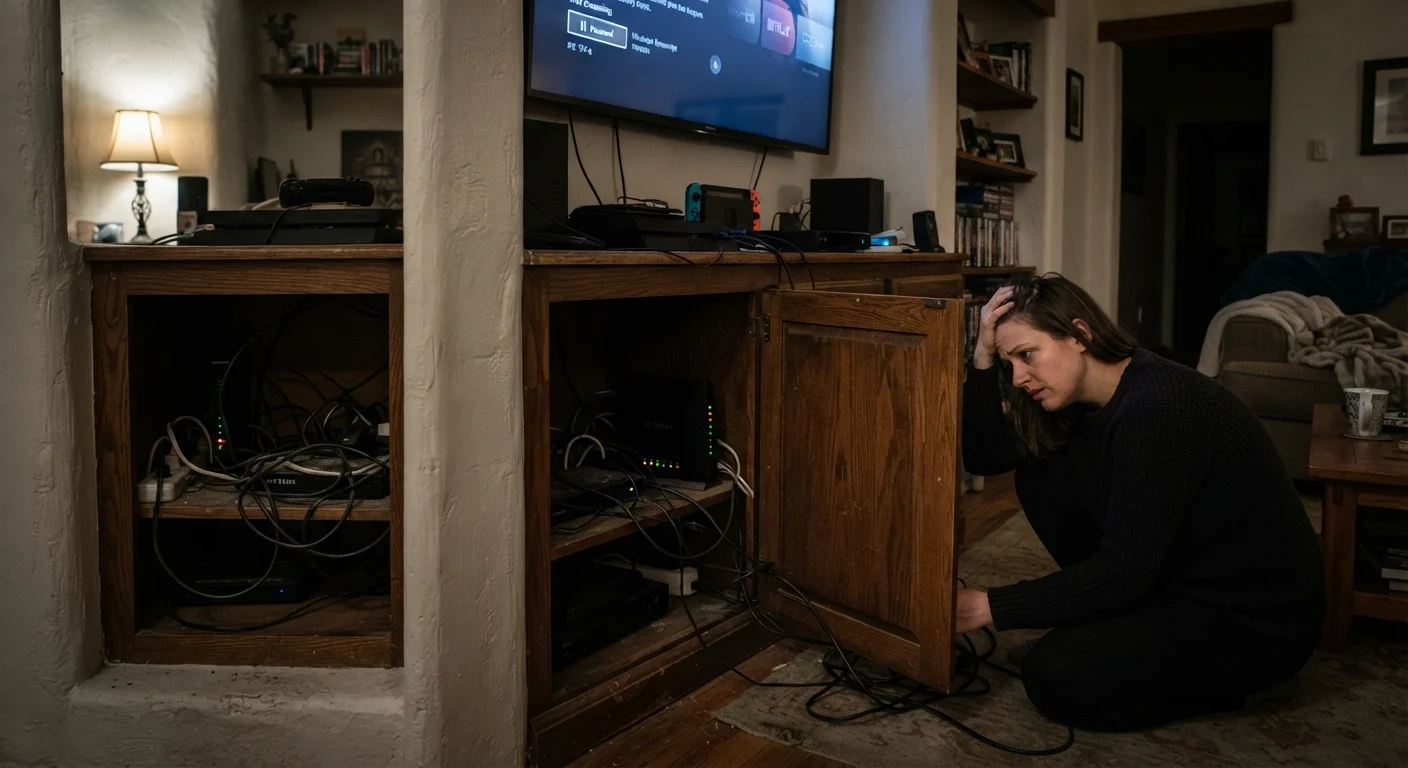
Photo: ArticleHood.com | Precision In Every Word editorial
Key Takeaways
- Router placement is the single biggest self-inflicted cause of weak Wi-Fi signal throughout your home.
- Outdated router firmware can silently slow your connection and expose your network to security risks.
- Too many devices on one Wi-Fi band can cause congestion even when your internet plan is fast enough.
- Restarting your router periodically clears memory buildup that gradually degrades performance.
- Using the wrong Wi-Fi frequency band for your situation leads to unnecessary slowdowns.
Why Your Router's Location Is Doing Most of the Damage
Of all the variables that affect home Wi-Fi quality, physical placement is the one most consistently mishandled - and the easiest to correct without spending anything. Wi-Fi signal radiates outward from the router in all directions, which means a router shoved into a corner broadcasts a significant portion of its signal into walls and empty space rather than into the rooms you actually use.
Thick walls, floors, and large metal surfaces absorb or reflect radio waves. Concrete, brick, and even dense cabinetry introduce meaningful signal loss. A router placed centrally in an open area - ideally off the floor and away from other electronics - gives every room in the home a more equitable shot at a usable connection.
Placing the router in a corner, closet, or cabinet far from the center of the home.
Never restarting the router, letting it run continuously for months or years.
Ignoring firmware updates, leaving the router running its original out-of-the-box software.
Connecting all devices to the 2.4 GHz band when 5 GHz is available and more appropriate.
Running too many active devices simultaneously without considering bandwidth demand.
Using Wi-Fi for devices that would perform better - and more reliably - over a wired Ethernet connection.
If your floor plan genuinely makes central placement difficult, that is one of the few situations where a more significant infrastructure change may make sense. Our connectivity troubleshooting checklist can help you confirm whether placement is actually the culprit before you make any changes.
The Maintenance Habits Most People Skip
Routers are easy to forget about once they are set up and working. But like any piece of computing hardware, they benefit from occasional attention - particularly around software updates and periodic restarts.
Security and Speed Are Linked
Firmware is the software built into your router that controls how it manages traffic, connects to your ISP, and communicates with your devices. Manufacturers release updates to fix bugs, address security vulnerabilities, and sometimes improve throughput. Skipping these updates means running hardware that is both less stable and less secure than it could be. Our companion article on home network security covers the broader privacy implications of an under-maintained router.
~30%
Signal loss through a single interior wall
Building material studies consistently show that standard drywall can reduce Wi-Fi signal strength by approximately 30%, with concrete and brick causing significantly greater attenuation.
2.4 GHz
Band shared with microwaves and many smart devices
The 2.4 GHz radio frequency is used by a wide range of household electronics, increasing the likelihood of interference on this band compared to 5 GHz.
25+ devices
Average connected devices in a US home
According to Deloitte's Digital Media Trends research, the average US household has grown to more than two dozen connected devices, increasing the potential for network congestion.
Restarting the router - separate from firmware updates - is a simpler fix that clears accumulated memory usage and refreshes the device's connection state. If you notice your connection slowing gradually over time and then snapping back to normal after a reboot, this is likely the cause.
Band Congestion, Device Overload, and When Wi-Fi Isn't the Right Tool
Modern routers broadcast on at least two frequency bands - 2.4 GHz and 5 GHz - and which band your devices use has a real effect on performance. Many devices default to 2.4 GHz, which is more crowded and slower but reaches farther. Devices close to the router that are doing bandwidth-heavy work - streaming video, video conferencing, downloading large files - benefit from being pointed toward the 5 GHz band instead.
Don't Assume Your Plan Is the Problem
The total number of active devices on a network also matters. Each connected device that is actively transferring data competes for available bandwidth. A household running multiple 4K streams, a video call, and a software update simultaneously will feel the pressure even on a reasonably fast connection. Learning to use your router's Quality of Service (QoS) settings - a feature that lets you prioritize traffic from specific devices or applications - can help manage these peaks without upgrading your plan. For a deeper look at whether your internet plan is even the right variable to change, see our article on internet speed misconceptions.
Finally, some devices simply should not be on Wi-Fi at all. Stationary equipment like desktop computers, gaming consoles, and smart TVs perform more consistently over a physical Ethernet cable - and removing them from the wireless network frees up capacity for devices that genuinely need mobility. The case for going wired is straightforward; our guide on wired versus wireless connections lays out exactly when the tradeoff is worth it.
The content on this site is for informational purposes only and is not a substitute for professional advice. Always consult a qualified professional for guidance specific to your situation.