
Home Network Security: Practical Steps to Keep Your Connection Private

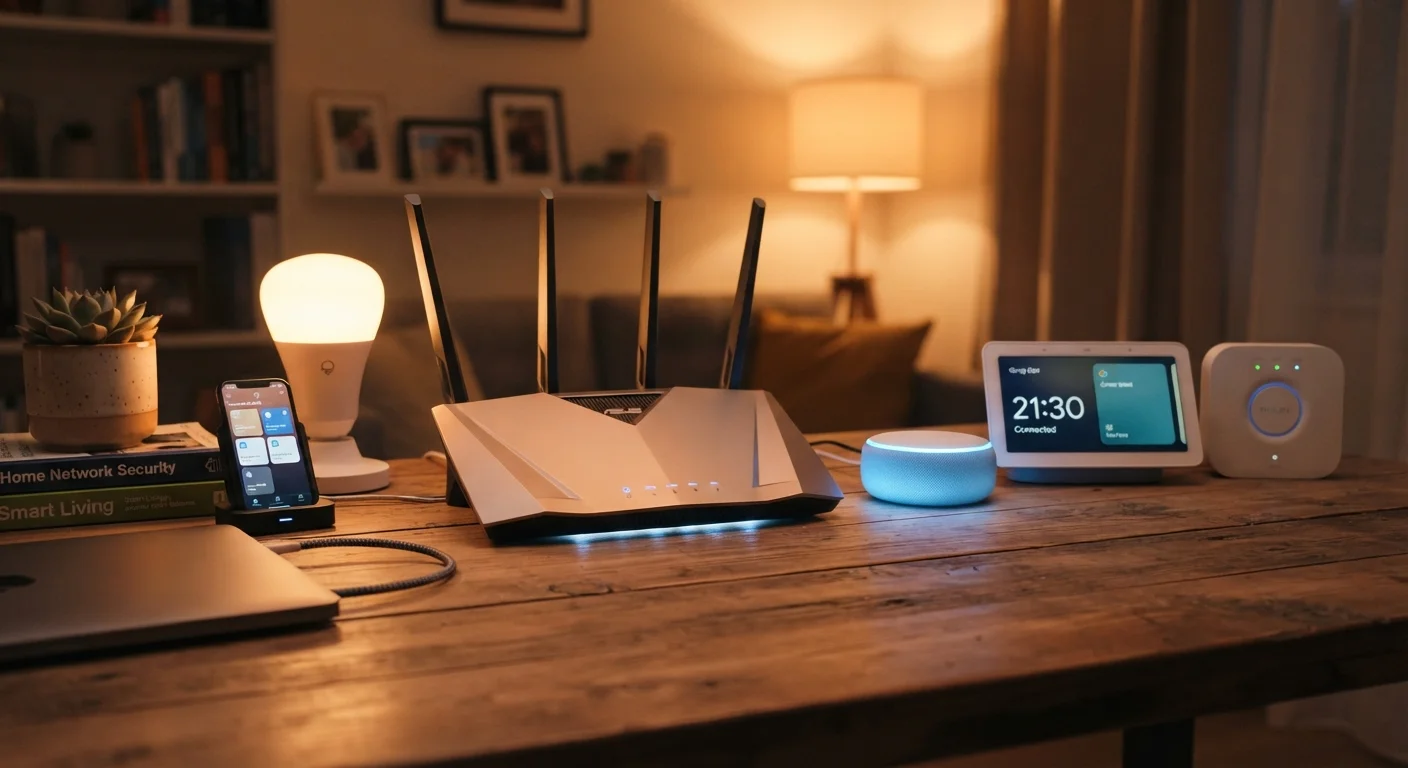
Photo: ArticleHood.com | Precision In Every Word editorial
Key Takeaways
- Changing your router's default login credentials is one of the most impactful security steps you can take.
- Using WPA3 or WPA2 encryption prevents outsiders from intercepting your wireless traffic.
- A separate guest network for visitors and smart devices limits exposure if one device is compromised.
- Keeping router firmware current closes known security vulnerabilities that attackers actively exploit.
- Disabling features you don't use - like remote management - reduces your network's attack surface.
Why Home Network Security Deserves Attention
Your home router is the gateway between every device you own and the wider internet. When that gateway is poorly configured, it can expose your personal data, allow strangers to use your connection, or give attackers a foothold into devices like laptops, phones, and smart home gear.
The good news is that most meaningful risks are addressed by a handful of straightforward settings - none of which require technical expertise. For a grounding in the terminology used throughout this article, the Internet & Connectivity Glossary is a helpful starting point.
83%
Routers with default credentials unchanged
Research by cybersecurity firm AVAST found that roughly 83% of home routers examined had default or weak credentials, making them easy targets for automated scans.
~50%
US households with 10+ connected devices
According to Parks Associates research, roughly half of US broadband households have ten or more connected devices sharing a single home network.
Practical Steps to Secure Your Network
The practices below cover the most impactful changes most home users can make. Each one is available through your router's settings page, typically reached by typing your router's IP address (often 192.168.1.1 or 192.168.0.1) into a browser.
Replace your router's default username and password immediately.
Set your Wi-Fi encryption to WPA3 or, at minimum, WPA2.
Create a separate guest network for visitors and smart home devices.
Keep your router's firmware updated.
Disable remote management unless you specifically need it.
Quick Actions You Can Take Today
Not every improvement requires a deep dive into router settings. Some changes take under five minutes and deliver immediate protection.
If you share devices with others in your household, pairing these network-level steps with account-level hygiene is equally important. See our guide to keeping accounts secure on shared devices for practical measures that complement what you've done at the router level.
Smart Devices and the Case for Separation
Smart TVs, thermostats, cameras, and voice assistants often run older, less-frequently-updated software, making them more vulnerable than a regularly patched laptop or phone. When all your devices share one network, a weakness in any one of them can potentially expose the others.
Why Smart Devices Belong on a Separate Network
If your smart devices are behaving unexpectedly, network configuration is often a contributing factor - the explainer on smart home devices that stop responding covers how network issues surface in practice.
For anyone setting up a network from scratch, our step-by-step guide to setting up a home Wi-Fi network walks through the full process with security built in from the start.
“Security is not a product, but a process. The steps you take today to configure your network thoughtfully are far more durable than any single tool or feature.”
— Bruce Schneier, Security technologist and author of multiple books on cybersecurity
The content on this site is for informational purposes only and is not a substitute for professional advice. Always consult a qualified professional for guidance specific to your situation.