
Internet & Connectivity Glossary: Terms Every Home User Should Recognise

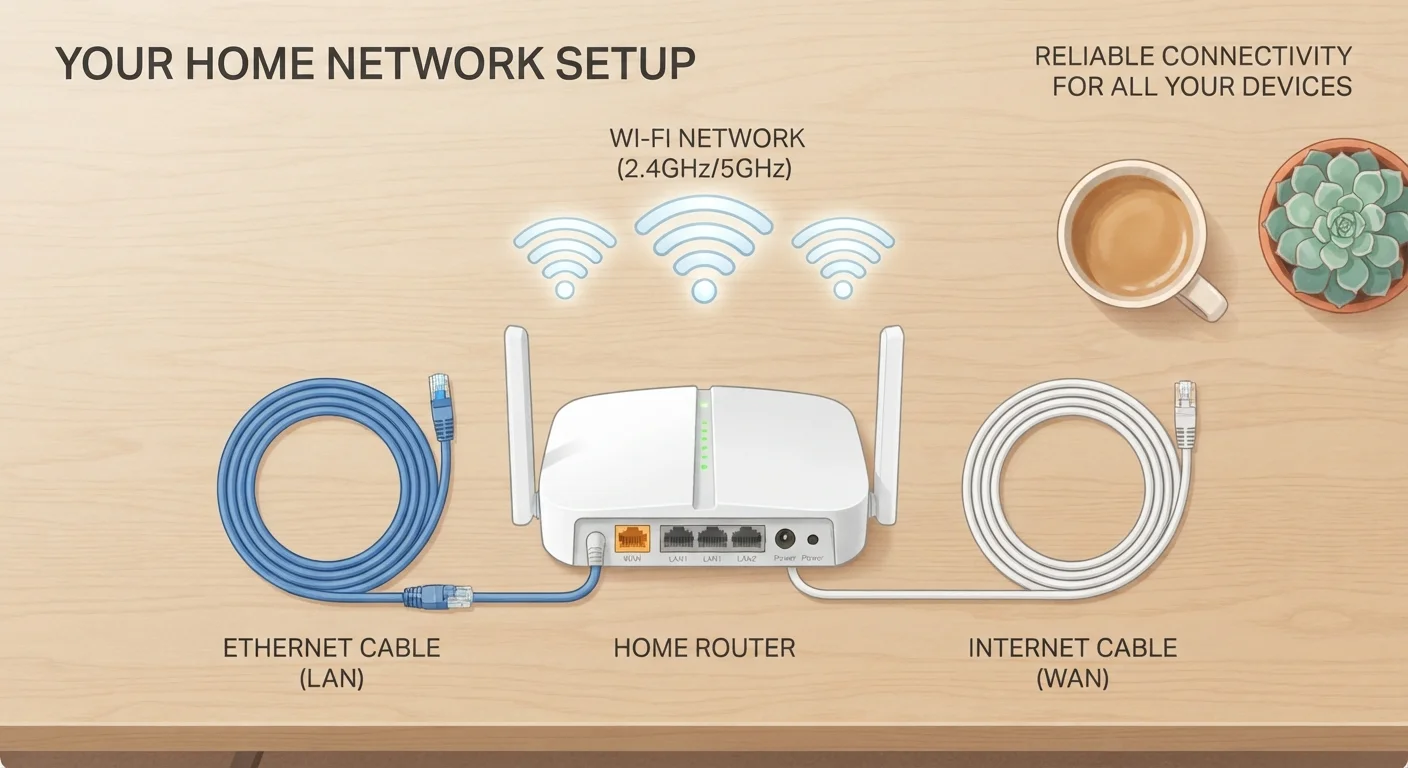
Photo: ArticleHood.com | Precision In Every Word editorial
Why These Terms Matter for Everyday Home Users
You don't need a networking degree to manage your home internet - but a working vocabulary goes a long way. When your ISP mentions latency, when your router settings show a DHCP option, or when a tech support rep asks about your NAT type, understanding what those words actually mean puts you in control of the conversation.
This glossary covers the terms you're most likely to encounter as a home internet user - whether you're troubleshooting a slow connection, setting up a new router, or just trying to decode your monthly plan. For a deeper look at what your plan's numbers actually mean day-to-day, see what the numbers on your internet plan actually mean.
| Speed unit for most home plans | Mbps (megabits per second) |
| Typical latency target for video calls | Under 150 ms |
| Common home Wi-Fi frequency bands | 2.4 GHz, 5 GHz, and 6 GHz (Wi-Fi 6E) |
| Current recommended Wi-Fi security protocol | WPA3 (WPA2 still widely supported) |
| What DNS translates | Website names → numeric IP addresses |
| Role of NAT in home networks | Lets multiple devices share one public IP address |
Core Connectivity Terms
These are the foundational terms that describe how internet data moves to and from your home.
Bandwidth
The maximum amount of data that can travel through your internet connection at once - usually measured in Mbps (megabits per second). Higher bandwidth allows more devices to stream, download, or video call simultaneously without slowing each other down.
Latency
The time it takes for a signal to travel from your device to a server and back, measured in milliseconds (ms). Low latency is especially important for video calls and online gaming; high latency causes noticeable lag even when download speeds appear fast.
ISP (Internet Service Provider)
The company that sells and delivers your internet connection - whether via cable, fiber optic, DSL, or fixed wireless. Your ISP assigns your home a public IP address and is responsible for the connection between your home and the broader internet.
Modem
A device that translates the signal from your ISP's network into a digital signal your home devices can use. In cable internet setups, the modem connects to the coaxial cable from the wall.
Router
A device that distributes your internet connection to multiple devices in your home - either through Ethernet cables or Wi-Fi. Most home setups combine a modem and router into a single unit provided by the ISP.
Mbps / Gbps
Megabits per second and gigabits per second - units used to measure internet connection speeds. One Gbps equals 1,000 Mbps. Standard HD video streaming typically requires around 5-10 Mbps per stream.
Data Cap
A monthly limit on how much data you can send and receive. Exceeding this cap may result in slower speeds, extra charges, or both, depending on your ISP's policy.
Ethernet
A wired networking standard that connects devices directly to a router or modem using a physical cable. Wired Ethernet connections are generally faster and more stable than Wi-Fi for the same connection speed.
Understanding the relationship between your modem and router is one of the most practical things a home user can learn. Our companion article on the difference between a router and modem explains how they work together.
Network Configuration Terms
Once data reaches your home, a layer of configuration determines how devices on your network communicate - with each other and with the wider internet.
- IP Address: A numerical label assigned to every device on a network. Your router holds a public IP address (visible to the internet) and assigns private IP addresses to each device inside your home.
- DHCP (Dynamic Host Configuration Protocol): The system your router uses to automatically assign private IP addresses to your devices. Without it, you'd need to configure each device manually.
- NAT (Network Address Translation): A method that lets all your home devices share one public IP address. Your router translates outgoing requests so responses come back to the correct device. Most home routers use NAT by default.
- DNS (Domain Name System): The internet's address book. When you type a website name, DNS translates it into the numeric IP address computers actually use to find each other. Slow or misconfigured DNS can make browsing feel sluggish even when your connection speed is fine.
- Firewall: A security filter - built into most home routers - that blocks unauthorized incoming traffic while letting your permitted outgoing traffic pass freely.
~150 ms
Latency threshold where video calls start to degrade
Generally accepted benchmark among network engineers; below 100 ms is considered good for most real-time applications.
2.4 GHz
Wi-Fi band with the longest indoor range
Travels farther through walls than 5 GHz but offers lower peak speeds and is shared with more devices and appliances.
1,000 Mbps
Data throughput equivalent to 1 Gbps
Fiber internet plans increasingly offer gigabit speeds in US markets, though real-world speeds depend on hardware and network conditions.
If you use cloud storage or streaming apps regularly, understanding how these background systems work also helps you make sense of what the cloud actually does with your files and photos.
Wi-Fi and Wireless Terms
Most home users connect wirelessly, which introduces its own set of terms worth knowing.
- SSID (Service Set Identifier): The name of your Wi-Fi network - what you see in the list when you search for networks on your phone or laptop.
- Frequency Band (2.4 GHz vs. 5 GHz): Wi-Fi routers broadcast on different radio frequencies. The 2.4 GHz band travels farther through walls but is more congested and slower. The 5 GHz band is faster but has a shorter range. Newer routers may also support a 6 GHz band (Wi-Fi 6E).
- Wi-Fi Standard (802.11ac, Wi-Fi 5, Wi-Fi 6): These label the generation of wireless technology your router and devices use. Newer standards generally offer faster speeds and handle more simultaneous devices better.
- Mesh Network: A system using multiple access points placed around your home to create a single, seamless Wi-Fi network - useful for eliminating dead zones in larger spaces.
- WPA2 / WPA3: Security protocols that encrypt data sent over your Wi-Fi. WPA3 is the current standard; WPA2 is still widely used. Using no password (an open network) means anyone nearby can intercept your traffic.
Your Wi-Fi Name Doesn't Have to Be Your Network's ID
For renters navigating building infrastructure and installation limits, what renters should know about home internet offers practical guidance on working within those constraints.
The content on this site is for informational purposes only and is not a substitute for professional advice. Always consult a qualified professional for guidance specific to your situation.