
Router vs Modem: The Difference Every Home Network User Should Know

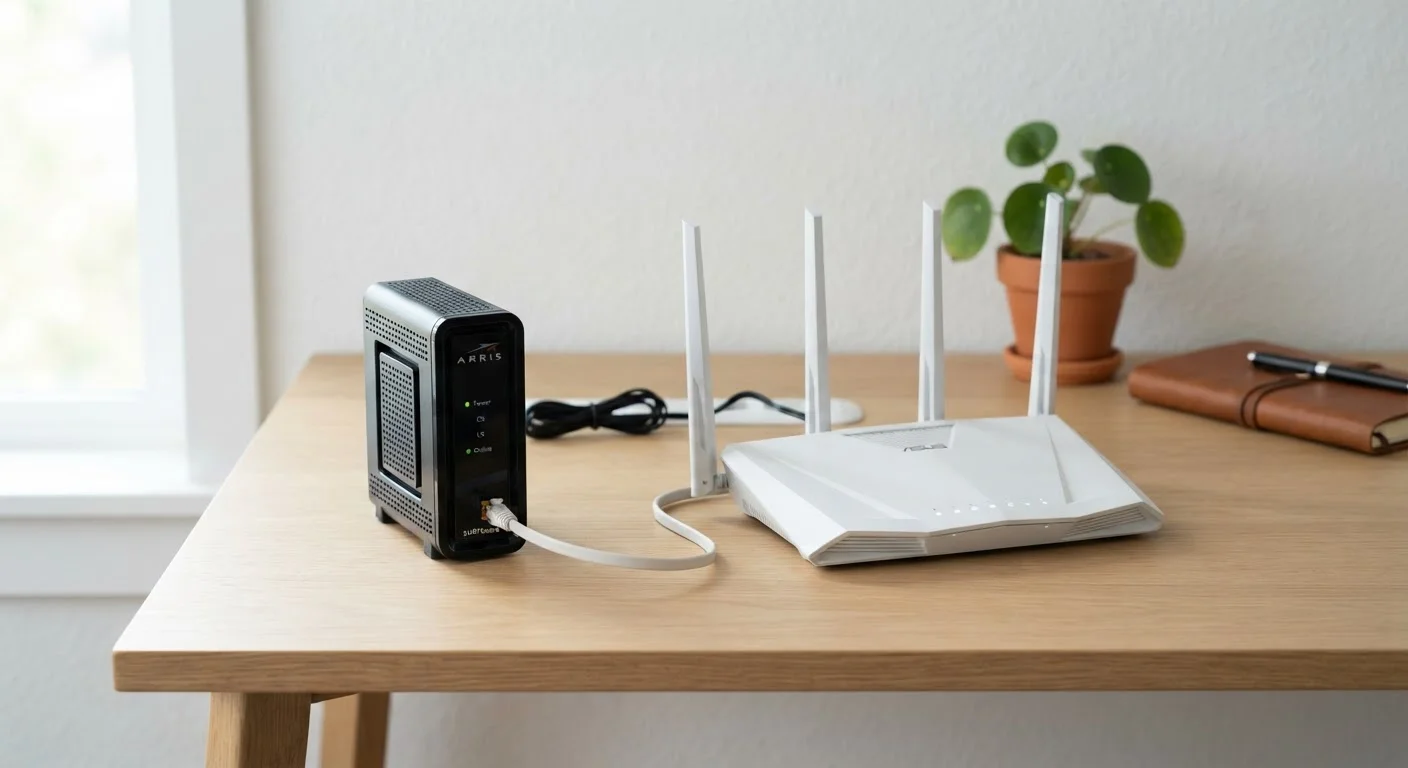
Photo: ArticleHood.com | Precision In Every Word editorial
Key Takeaways
- A modem connects your home to your internet service provider (ISP); a router connects your devices to each other and to that connection.
- Without a modem, you have no internet signal; without a router, only one device can use that signal at a time.
- Many ISPs supply a combined modem-router unit, often called a gateway, which performs both functions in one box.
- Upgrading your router can improve Wi-Fi speed and coverage without touching your modem.
- Understanding each device's role makes troubleshooting outages and slowdowns significantly easier.
What a Modem Actually Does
The word modem is a contraction of modulator-demodulator - a clue to its core job. Your internet service provider (ISP) delivers a signal to your home over a physical medium: a coaxial cable (common with cable internet), a phone line (DSL), or a fibre-optic line. That signal exists in a format your computer or phone cannot directly understand. The modem's job is to translate it into standard digital data, and to send data back in the format the ISP's network expects.
In practical terms: the modem is the point where the outside internet ends and your home begins. It typically has two ports - one that connects to the ISP's line coming into your wall, and one Ethernet port that leads to your router (or directly to a single computer). It holds an IP address assigned by your ISP, which is how the broader internet identifies your household's connection.
A modem on its own can share that connection with only one device at a time. That's where the router comes in. For a deeper look at networking terminology, see the Internet & Connectivity Glossary for plain-language definitions of terms like IP address, DNS, and bandwidth.
What a Router Actually Does
A router sits between your modem and all the devices in your home. Its primary job is to manage traffic: it assigns a private IP address to every phone, laptop, smart TV, and speaker on your network, and it routes data packets to the right destination - both within your home and out to the internet.
Routers are also responsible for your Wi-Fi. The wireless signal you connect to - the network name (SSID) you select from your phone's settings - is broadcast by the router, not the modem. This means that Wi-Fi range, speed, and the number of simultaneous connections your network can handle are all determined by your router's hardware and software capabilities.
Modern routers also provide a basic firewall, network security features, and parental controls. Some allow you to prioritise traffic for specific devices - useful if video calls keep stuttering while someone else streams in the next room. To understand how a router processes each web request you make, see What Happens Inside a Router the Moment You Hit a Web Page.
| Criterion | Modem | Router |
|---|---|---|
| Primary function | Translates ISP signal into digital data | Distributes data to home devices |
| Connects to | ISP line (coax, phone, or fibre) | Modem and home devices |
| Provides Wi-Fi | No | Yes |
| Assigns device IP addresses | No | Yes |
| Holds your public IP address | Yes (assigned by ISP) | No |
| Devices it supports simultaneously | One (via its Ethernet port) | Many (wired and wireless) |
| Firewall / security features | Minimal or none | Built-in on most models |
| Upgrade improves Wi-Fi performance | No | Yes |
Gateway Devices: When One Box Does Both
Many ISPs supply a single device that combines modem and router functions. These are commonly called gateways or combo units. They're convenient - one power cable, one device to manage - but they come with trade-offs.
Gateway hardware is often mid-range by design, and ISPs update it on their own schedule. If you want stronger Wi-Fi performance or a specific feature (like Wi-Fi 6 support), you may be limited by whatever the ISP chose to include. Some households connect their own router to the gateway, though this can create a configuration issue called "double NAT" (where two devices are each assigning private addresses), which may affect some applications unless the gateway is set to "bridge mode."
What Is Bridge Mode?
If you're renting or navigating shared building infrastructure, Everything Renters Should Know About Home Internet explains how to handle ISP-supplied equipment and building-level constraints.
Why This Distinction Matters for Troubleshooting and Upgrades
Knowing which device does what can save significant frustration. If your internet goes completely dark - no connection on any device - the modem (or the line into it) is the likely suspect. Restarting the modem and checking whether its status lights indicate a successful connection to the ISP is the right first step.
If the internet works but your Wi-Fi is slow, drops in certain rooms, or struggles with multiple devices, the router is the relevant device to examine. Restarting it, repositioning it, or eventually upgrading it are all router-level decisions.
Upgrading your router is also the path to accessing newer wireless standards. Wi-Fi 5, Wi-Fi 6, and Wi-Fi 6E: What Changed and Why It Matters at Home covers what each generation improves and whether a newer router is worth considering. And if coverage remains an issue even after a router upgrade, Mesh Wi-Fi Networks: What They Trade Off and What They Gain explores whole-home coverage systems and their real-world trade-offs.
1 box
Gateway units combine modem and router
Most major US ISPs now supply a combined gateway device as the default equipment for new broadband subscribers.
~$10-15/mo
Typical ISP equipment rental fee
Many US ISPs charge a monthly rental fee for their supplied gateway, which is why some households choose to purchase compatible equipment separately over time.
The content on this site is for informational purposes only and is not a substitute for professional advice. Always consult a qualified professional for guidance specific to your situation.