
What Happens Inside a Router the Moment You Hit a Web Page

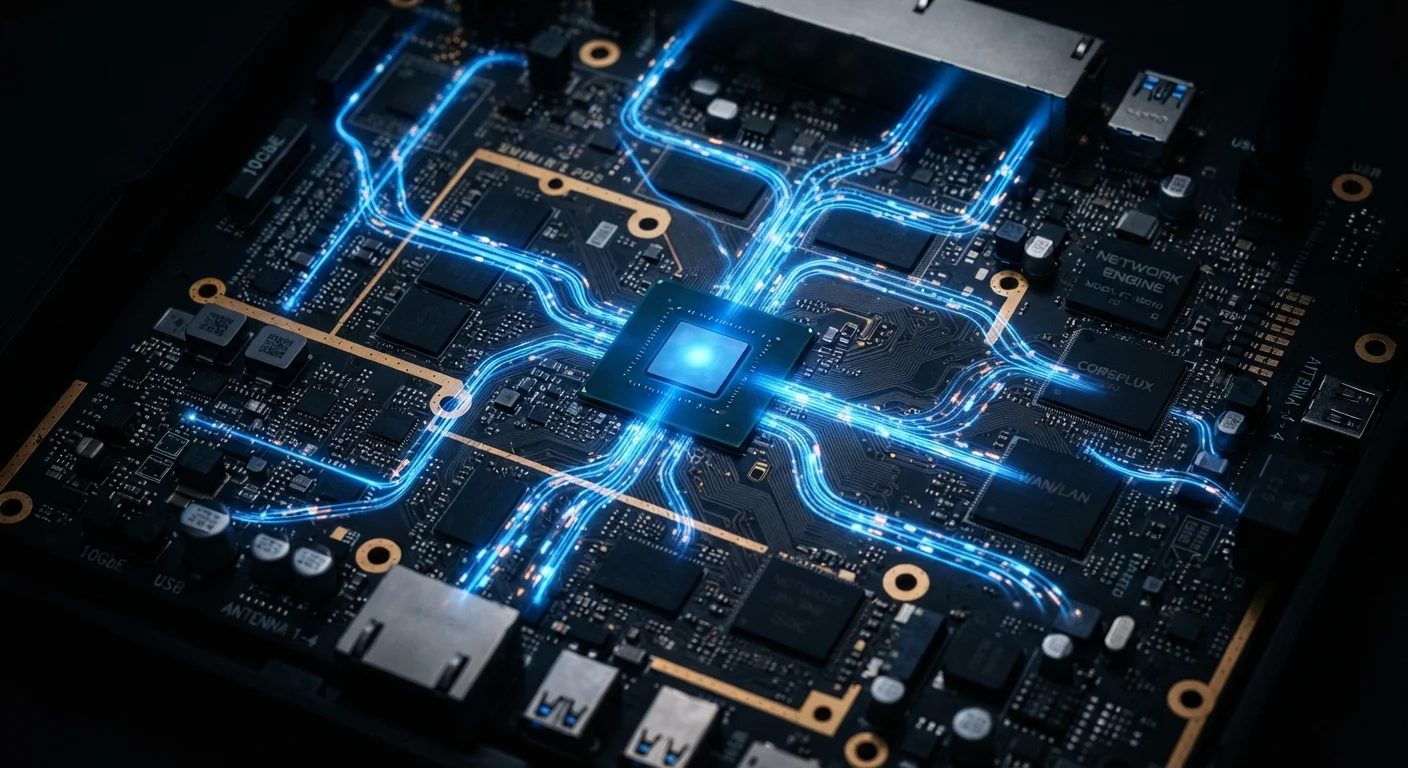
Photo: ArticleHood.com | Precision In Every Word editorial
Key Takeaways
- Typing a web address triggers a DNS lookup that converts the name into a numeric IP address the internet understands.
- Your router assigns each device a private IP address but shares a single public IP with the outside world.
- Web pages arrive in small chunks called packets, which the router reassembles in the right order.
- The entire process - from click to page load - typically takes well under a second on a healthy connection.
- Router congestion, not just your internet plan speed, is a common cause of slowdowns on busy home networks.
Step 1: Your Device Makes a Request
The moment you type a URL into your browser and press Enter, your device prepares a request. But it doesn't know where that website lives yet - it only has a name, like example.com. Before anything else can happen, that name needs to be converted into a numeric address the internet can actually route to.
Your device first checks its own memory (called a cache) to see if it recently looked up this address. If not, it sends a query to a DNS server - short for Domain Name System. Think of DNS as the internet's phone book: it maps human-readable names to numeric IP addresses, such as 93.184.216.34. This lookup typically completes in milliseconds. See the internet connectivity glossary for plain-language definitions of terms like IP address, DNS, and more.
Speed Up DNS With a Simple Setting
Step 2: The Router Reads and Routes the Request
Once your device has the destination IP address, it packages the request into small data units called packets. Each packet contains a destination address, a return address (your device's local IP), and a small chunk of the actual request data.
Your router receives these packets from your device over Wi-Fi or a wired connection. Here's where something important happens: your home devices each have a private IP address - one that only exists inside your home network. But the internet doesn't recognize those private addresses. Your router uses a process called NAT (Network Address Translation) to swap your device's private address for your home's single public IP address before sending packets out to the internet. It also keeps a record of which internal device sent which request, so the reply lands back in the right place.
For a deeper look at how your router fits into the bigger picture, see how routers and modems work together.
<1ms
Typical DNS lookup completion time
Cached DNS responses on modern home networks resolve in under a millisecond; uncached queries to a fast resolver typically complete within 20-120ms.
~1,500 bytes
Maximum size of a single data packet
The standard maximum transmission unit (MTU) for Ethernet networks is 1,500 bytes, meaning large files are split into many individual packets for transmission.
Step 3: The Web Server Responds and Packets Return
Your packets travel through your modem, across your internet provider's infrastructure, and eventually reach the web server hosting the page you requested. That server processes the request and sends back a response - typically HTML, images, and other files - broken into its own stream of packets.
Those returning packets don't all necessarily take the same path back. Each one finds the fastest available route across the internet's interconnected network of cables, routers, and data centers. When they arrive at your home router, it uses its NAT records to forward each packet to the correct device on your network.
Your browser then reassembles the packets in the correct order and renders the page. The whole sequence - DNS lookup, NAT translation, packet routing, server response, and reassembly - typically completes in under half a second on a well-functioning connection. Understanding your plan's speed numbers can help you know what to expect; home internet plan specs explained breaks down what Mbps and latency really mean for everyday browsing.
When Things Slow Down
If any step in this chain stalls, the page load suffers. Common bottlenecks include a sluggish DNS response, a congested router handling too many simultaneous requests, a weak Wi-Fi signal adding transmission errors, or a distant or overloaded web server.
It's worth noting that your router does real processing work on every packet it handles. An older or inexpensive router can become a genuine bottleneck on fast internet plans - not because the internet is slow, but because the router can't forward packets quickly enough. If you suspect your router is the weak link, diagnosing a slow internet connection walks through a systematic approach to finding the actual cause before assuming the problem is your plan.
“The internet is not a thing you can hold or see - it's a set of agreements about how machines talk to each other. Your router is the place where those agreements touch your daily life.”
— Vint Cerf, Co-designer of the TCP/IP protocol, widely described as one of the foundational architects of the internet
For anyone setting up or upgrading their home network, setting up a Wi-Fi network at home covers the foundational steps in plain, practical terms.
Frequently Asked Questions
The content on this site is for informational purposes only and is not a substitute for professional advice. Always consult a qualified professional for guidance specific to your situation.