
Why Your Smart Home Devices Sometimes Stop Responding - and What's Actually Going On

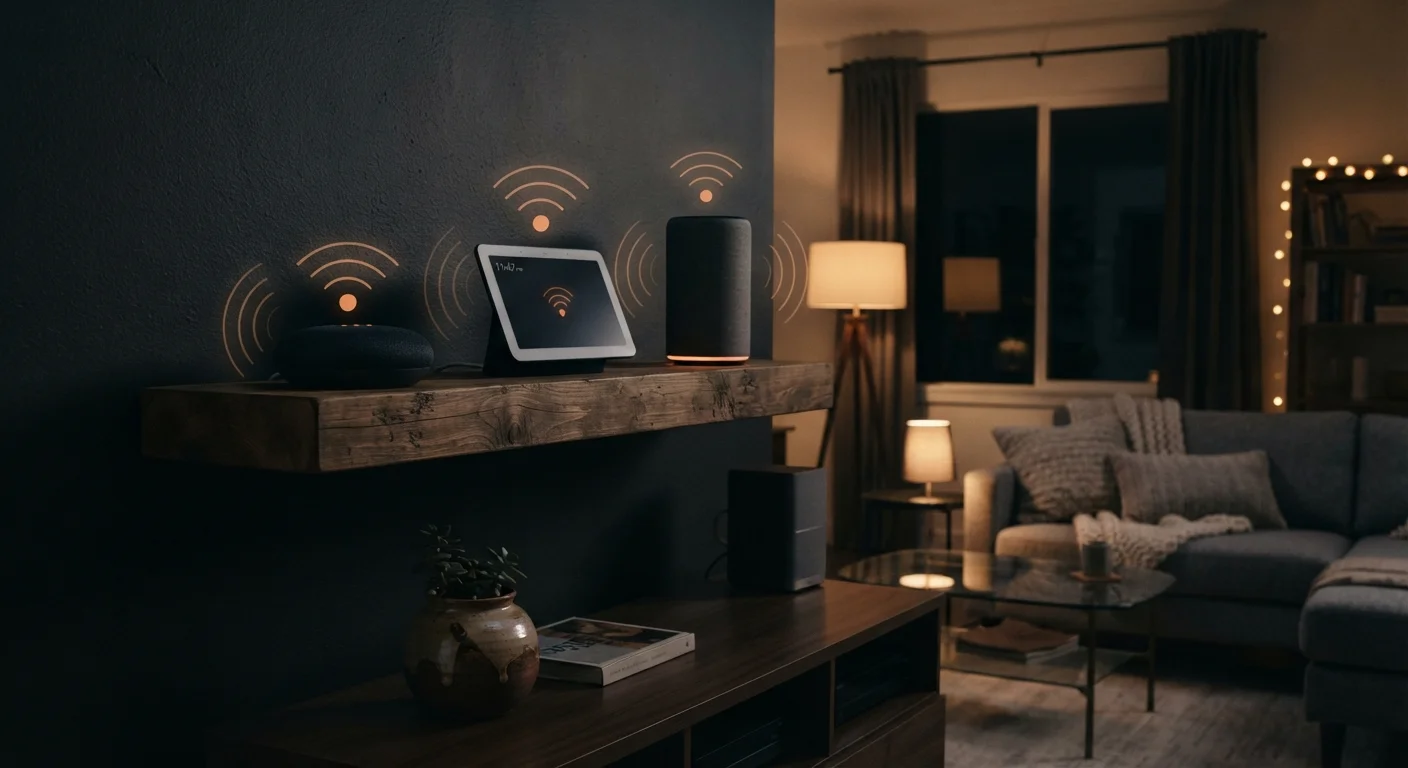
Photo: ArticleHood.com | Precision In Every Word editorial
Key Takeaways
- Most smart home dropouts trace back to Wi-Fi band conflicts, network overload, or outdated firmware - not broken hardware.
- Smart devices use different protocols (Wi-Fi, Zigbee, Z-Wave, Thread); mixing them without a compatible hub causes silent failures.
- Rebooting only the device instead of the full network stack is the most common troubleshooting mistake homeowners make.
- Placing your router too far from smart devices or behind thick walls dramatically increases dropout frequency.
- Keeping device firmware and router software updated resolves a surprising share of persistent unresponsiveness issues.
The Real Reason Smart Devices Go Silent
When a smart bulb stops responding to your voice command or a smart lock ignores your app, the instinct is to blame the device itself. In most cases, the hardware is fine. What's actually broken is the chain of communication between the device, your home network, and the cloud service that processes the command.
Smart home devices rely on a layered system: a local wireless protocol to reach your router, your router to reach the internet, and a manufacturer's server to interpret and relay the instruction. A break anywhere in that chain - even a momentary one - produces the same symptom: no response. Understanding where the break occurred is the first step to fixing it, and avoiding the mistakes below will prevent most breaks from happening in the first place.
For a broader look at how different device types fit into this chain, see our guide to smart speakers, displays, and hubs.
Common Mistakes That Kill Smart Home Reliability
The following errors account for the vast majority of smart home frustrations reported by everyday users. Each one is avoidable once you know what to look for.
Placing smart devices too far from the router or hub, expecting Wi-Fi to reach through walls and floors without issue.
Connecting everything to the same Wi-Fi network band, creating congestion that makes low-priority smart devices drop out.
Rebooting only the unresponsive device rather than restarting the full network stack - modem, router, and hub - in the correct sequence.
Mixing smart home protocols - Wi-Fi, Zigbee, Z-Wave, Thread - without a hub that supports all of them, leaving some devices unable to communicate.
Leaving device firmware and router software outdated for months or years, missing bug fixes that directly affect connectivity.
If Wi-Fi coverage is part of your problem, understand why signal weakens in certain rooms before rearranging your setup.
Network Habits That Make Problems Worse
2.4 GHz
Wi-Fi band used by most smart home devices
The 2.4 GHz band offers longer range but is more prone to interference from neighboring networks and household appliances like microwaves, which directly affects smart device reliability.
~30 ft
Typical Zigbee mesh hop range indoors
Zigbee devices can relay signals between themselves in a mesh pattern, with each hop covering roughly 30 feet indoors - making device placement less critical than with direct Wi-Fi connections.
Beyond individual device mistakes, certain ongoing habits quietly degrade smart home performance over time. Keeping too many idle devices connected to your router's 2.4 GHz band - the frequency most smart gadgets prefer - creates congestion that manifests as lag and dropouts. Smart devices are low-bandwidth but sensitive to latency; a crowded network makes them behave as if they've lost their connection entirely.
Firmware neglect is another silent culprit. Router manufacturers and device makers regularly push updates that patch connectivity bugs and improve protocol handling. Skipping these updates means your devices are running on software that may have known, already-fixed flaws. Most routers can be set to update automatically; smart device apps often prompt you when firmware is available.
For a full list of self-inflicted network problems, review the habits that quietly undermine your home Wi-Fi. And once your devices are stable, it's worth taking time to secure your home network - an unsecured network creates both reliability and privacy risks.
Factory Resets Erase Your Configuration
If you've worked through your device and router settings and the problem persists, run through this connectivity checklist before calling your ISP - many outages are resolvable at home in minutes.
The content on this site is for informational purposes only and is not a substitute for professional advice. Always consult a qualified professional for guidance specific to your situation.