
Why Your Wi-Fi Slows Down in Certain Rooms - and What's Actually Happening

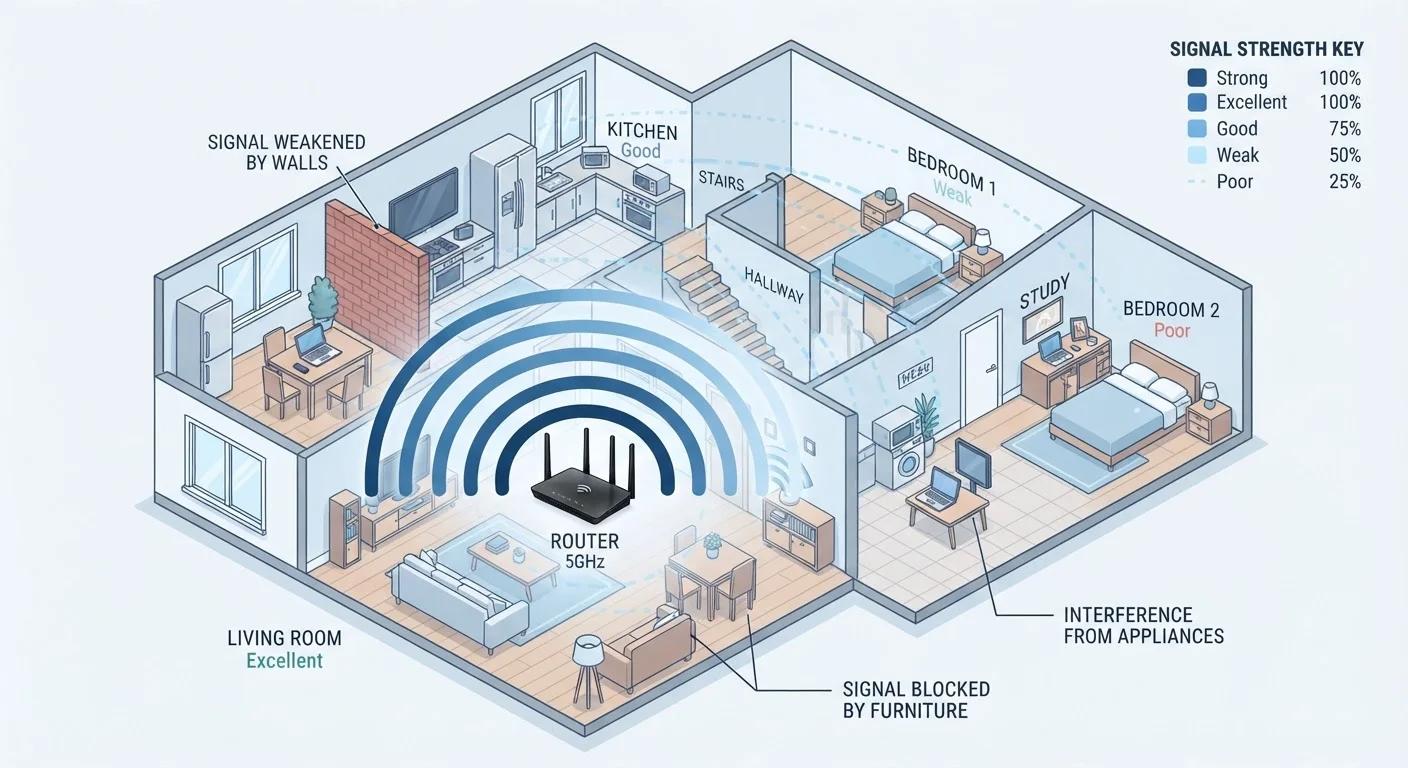
Photo: ArticleHood.com | Precision In Every Word editorial
Key Takeaways
- Wi-Fi signals are radio waves that weaken when they pass through walls, floors, and dense materials.
- The 5 GHz band delivers faster speeds but shorter range; 2.4 GHz travels farther but is more congested.
- Concrete, brick, metal appliances, and water-rich objects like fish tanks are the worst signal blockers.
- Router placement - height, central location, and clearance - has a measurable effect on coverage.
- Interference from neighboring networks and household electronics compounds natural signal loss.
Radio Waves Don't Pass Through Everything Equally
Your router doesn't send data through wires to every device - it broadcasts radio waves that carry information through the air. Like any wave, a Wi-Fi signal spreads outward in all directions and weakens the farther it travels. That's completely normal. The problem is that the materials in your home speed up this weakening dramatically.
Different building materials absorb radio energy at different rates. Here's a rough ranking from least to most disruptive:
- Drywall and wood - modest attenuation; most signals pass through reasonably well
- Glass - generally low interference, though large windows can cause reflection
- Plaster - often contains wire mesh or clay, which absorbs more signal than drywall
- Brick and concrete - heavy attenuation; a single concrete wall can cut signal strength dramatically
- Metal - reflects and blocks signals almost entirely; metal studs in walls are a common hidden culprit
Water is also a surprisingly effective absorber of 2.4 GHz radio waves. A large fish tank, a water heater between your router and your office, or even a dense bookcase can create a noticeable dead zone on the other side.
Reflection Can Help or Hurt
The Two Frequencies Behave Very Differently
Most modern routers broadcast on two frequency bands simultaneously: 2.4 GHz and 5 GHz. Understanding how they differ explains a lot about why one room works fine while another feels like dial-up.
2.4 GHz has a longer wavelength, which helps it travel farther and bend around obstacles more easily. The trade-off: it's a crowded band shared with Bluetooth devices, baby monitors, microwave ovens, and every neighbor's router in range.
5 GHz carries significantly more data - meaning faster speeds when you're close to the router - but its shorter wavelength loses energy more quickly over distance and struggles more with walls. Step into the next room, and you might drop from full bars to a thin signal.
If your router broadcasts both bands under the same network name, your device chooses which to use. It doesn't always make the optimal choice. Some routers have a feature called band steering that guides devices toward the better band automatically, but results vary. For a deeper look at how Wi-Fi generations handle these trade-offs, see how Wi-Fi 5, 6, and 6E differ.
~50%
Signal loss through a single concrete wall
Engineering references on RF attenuation consistently show concrete can reduce Wi-Fi signal strength by half or more at 2.4 GHz, with greater losses at 5 GHz.
3
Non-overlapping 2.4 GHz channels in the US
In the US, only channels 1, 6, and 11 on the 2.4 GHz band do not overlap, meaning congestion on any one channel directly affects nearby devices.
Where You Put Your Router Changes Everything
Router placement is the single most impactful variable most households never think about. A router tucked in a corner, hidden inside a cabinet, or placed on the floor near an exterior wall is working against itself from the start.
A few placement principles that reflect how radio waves actually behave:
- Central location - the signal radiates in all directions, so a central router covers more of the home than one sitting at one end.
- Elevated position - placing the router at desk or shelf height, rather than floor level, reduces interference from furniture and allows the signal to spread more evenly across a floor plan.
- Away from metal appliances - refrigerators, filing cabinets, and metal shelving all reflect and scatter signals. Keep the router at a distance from these.
- In open air, not inside cabinets - enclosures limit signal in every direction.
If your router is already in a reasonable position but certain rooms still suffer, the issue may be structural rather than solvable with placement alone. Common habits that quietly undermine Wi-Fi - like outdated firmware or channel congestion - can compound the problem further.
A Simple Placement Test Before You Buy Anything
Interference You Can't See
Even without walls in the way, your signal can slow to a crawl because of invisible radio congestion. In dense residential areas - apartment complexes, row houses, closely packed neighborhoods - dozens of networks may be broadcasting on overlapping channels. Your router and your neighbor's router are essentially talking over each other.
Wi-Fi channels are sub-divisions of each frequency band. On 2.4 GHz, only three channels (1, 6, and 11) don't overlap with each other in the US. If every router on your floor is using channel 6, congestion is inevitable. Most routers can be set to select channels automatically, or you can manually assign a less congested one using a free Wi-Fi analyzer app on your phone.
Interference also comes from within your own home. Cordless phones using 2.4 GHz, some baby monitors, and older Bluetooth devices all share spectrum with your router. The effect is typically a temporary slowdown rather than a complete dropout, but in households with many smart devices, it adds up. If smart devices are frequently losing their connection alongside your phones and laptops, why smart home devices stop responding explains how network congestion plays into that pattern.
When structural and interference problems combine - thick walls plus a crowded 2.4 GHz band plus a corner router placement - the result is the kind of persistent dead zone that feels inexplicable. It's not. It's physics, architecture, and radio spectrum all working against the same corner of your home at once. Understanding those forces is the first step toward addressing them, whether that means repositioning hardware, switching bands, or exploring a mesh networking system designed to distribute coverage more evenly. And if you're weighing whether to stay wireless at all for certain devices, when a wired Ethernet connection beats Wi-Fi is worth considering for stability-critical setups.
Frequently Asked Questions
The content on this site is for informational purposes only and is not a substitute for professional advice. Always consult a qualified professional for guidance specific to your situation.