
Understanding Screen Resolution: 1080p, 4K, and Why Pixel Count Isn't Everything

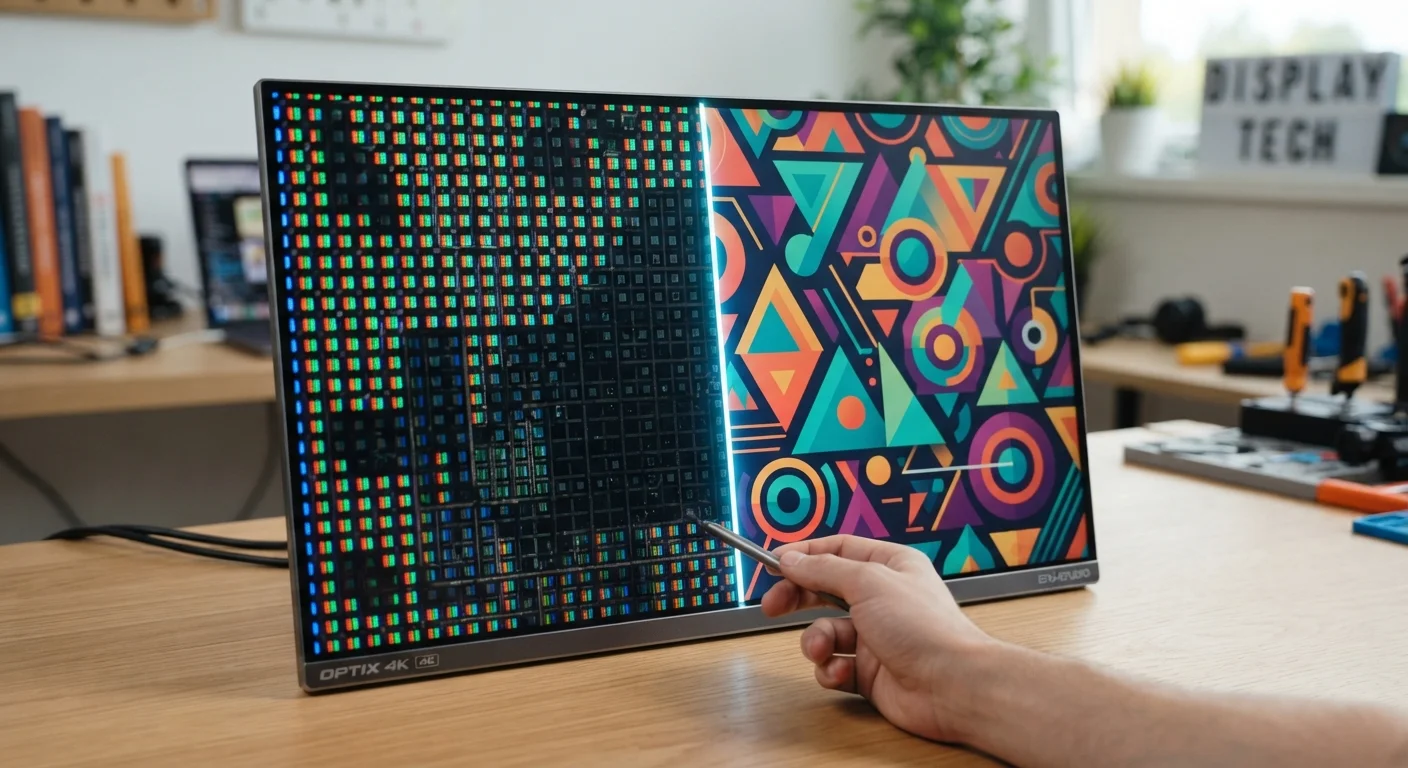
Photo: ArticleHood.com | Precision In Every Word editorial
Key Takeaways
- Resolution describes the total number of pixels on a screen, not how sharp it looks.
- Pixel density - pixels per inch - determines perceived sharpness more than raw resolution alone.
- A 4K screen on a small phone may look identical to 1080p because viewing distance and screen size matter.
- Panel technology (IPS, OLED, AMOLED) controls contrast, color accuracy, and brightness independently of resolution.
- Higher resolution demands more processing power and battery, so bigger numbers aren't always better.
What Screen Resolution Actually Means
Every screen - whether it's your phone, laptop, or living room TV - is made up of tiny dots of light called pixels. Resolution is simply the count of those pixels, expressed as two numbers: width × height. A screen listed as 1920×1080 has 1,920 columns of pixels across and 1,080 rows down, for a total of about 2.1 million pixels.
Higher resolution means more pixels exist on the panel. More pixels can represent finer detail - but only under the right conditions. Resolution alone doesn't tell you whether an image looks sharp. That's where additional factors come in, which we'll cover throughout this guide.
1080p, 4K, and the Numbers in Between
The shorthand labels you see on product pages map to specific pixel counts:
- HD (720p): 1280×720 - still common on budget devices and older streaming content.
- Full HD (1080p): 1920×1080 - the current baseline for laptops, monitors, and streaming video.
- Quad HD / 2K (1440p): 2560×1440 - popular on mid-range smartphones and gaming monitors.
- 4K / Ultra HD: 3840×2160 - roughly four times the pixel count of 1080p; common on large TVs and high-end monitors.
The "4K" label can be slightly inconsistent - some cinema contexts use 4096 pixels wide, while consumer TVs use 3840 - but both are loosely called 4K. Just as megapixels don't tell the whole camera story, resolution alone doesn't determine how good a display looks.
Pixel Density: Why Size Changes Everything
Imagine spreading 2 million pixels across a 65-inch TV versus cramming the same count into a 6-inch phone. On the phone, those pixels are packed tightly together - they're tiny and indistinguishable from one another. On the TV, each pixel is much larger and more visible.
This crowding effect is measured as pixels per inch (PPI). A higher PPI means sharper text and images at a given viewing distance. Most people can't detect individual pixels above roughly 300 PPI when holding a device at a normal reading distance.
That's why a 1080p smartphone from several years ago could look just as crisp as a 4K phone viewed side by side - the 4K phone may only score a marginally higher PPI at 6 inches of screen size. Viewing distance matters too: you sit much farther from a TV than you hold a phone, which is why large TVs benefit most from 4K.
Quick PPI Sanity Check
Panel Type and Color: The Other Half of the Story
Resolution describes how many pixels exist. Panel technology determines how each pixel produces color and light - and that shapes what you actually perceive as quality.
- IPS LCD: Accurate colors, wide viewing angles, decent brightness. Common in mid-range laptops and monitors.
- OLED: Each pixel emits its own light and can switch off completely, producing true black and exceptional contrast. Colors appear vivid and the display is usually thinner.
- AMOLED: Samsung's variant of OLED, often tuned for extra vibrancy and found on many flagship smartphones.
A 4K IPS display can look flatter and less dramatic than a 1080p OLED display in a dark room, because the OLED's contrast ratio is far higher. Panel type also governs brightness (measured in nits) and color gamut - the range of colors the screen can reproduce. These qualities shape your viewing experience just as meaningfully as resolution. For a look at how the screen responds to your touch, see how touchscreens detect your finger.
Refresh Rate Is a Separate Spec
Putting It All Together When You're Choosing a Screen
When evaluating any display - on a phone, laptop, smart display, or TV - run through these four questions:
- How large is the screen? On screens under 6 inches, anything above 1080p typically delivers diminishing returns to the naked eye.
- How far away will you sit? TVs over 50 inches benefit clearly from 4K when viewed from 6-8 feet. Monitors at desk distance benefit from 1440p or 4K for detailed work.
- What panel type is it? OLED or AMOLED panels often deliver a more satisfying image than a higher-resolution LCD, especially indoors.
- What will you use it for? Streaming, gaming, photo editing, and casual browsing all have different sweet spots for resolution and color accuracy.
If you want a broader view of how display specs fit into overall device specs, decoding smartphone specs in plain English is a helpful next step. And if you're considering a smart display for your home, our guide on smart speakers, displays, and hubs explains how screen-equipped smart home devices fit into the bigger picture.
Rtings.com Display Guides
A detailed, jargon-explained resource covering panel types, contrast ratios, and resolution comparisons for TVs, monitors, and phones - useful for understanding what test measurements actually mean.
DisplayNinja Resolution Comparison Tool
Allows you to compare how different resolutions look on different screen sizes, helping you visualize PPI differences before you buy.
Frequently Asked Questions
The content on this site is for informational purposes only and is not a substitute for professional advice. Always consult a qualified professional for guidance specific to your situation.